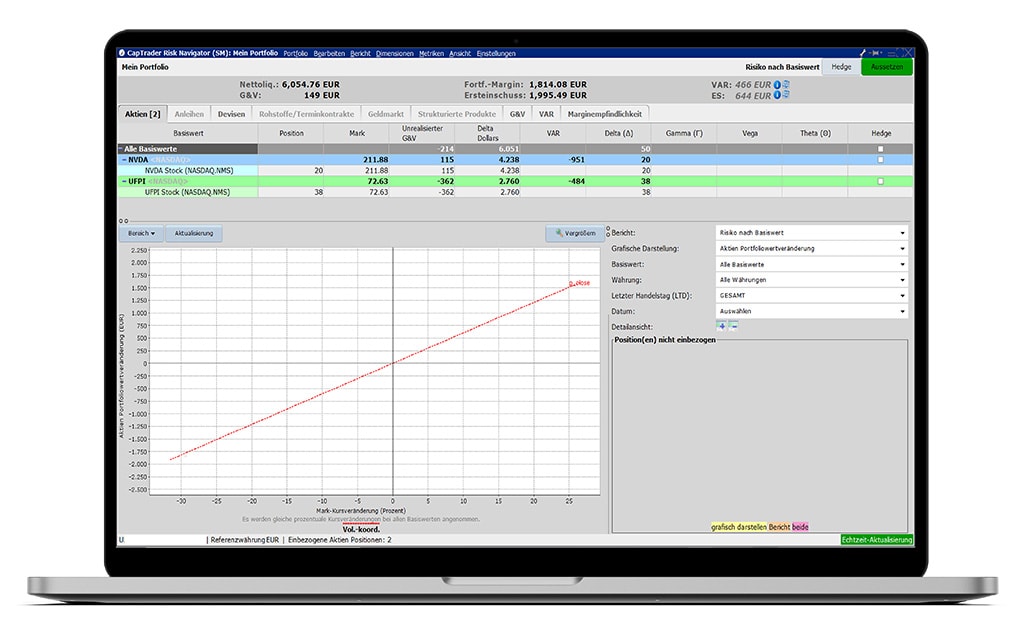
The integrated stock window offers traders the following Advantages
The TWS Integrated Stock Window (Window), or ISW, is a centralized one-symbol window that provides comprehensive market data and graphics for order entry with the click of a mouse. The quote aperture (Quote Panel) displays market data for the selected symbol. By default, the quote panel uses the single-line view to display all TWS ticker lines.
Fully automatic execution
Comprehensive market data and graphics
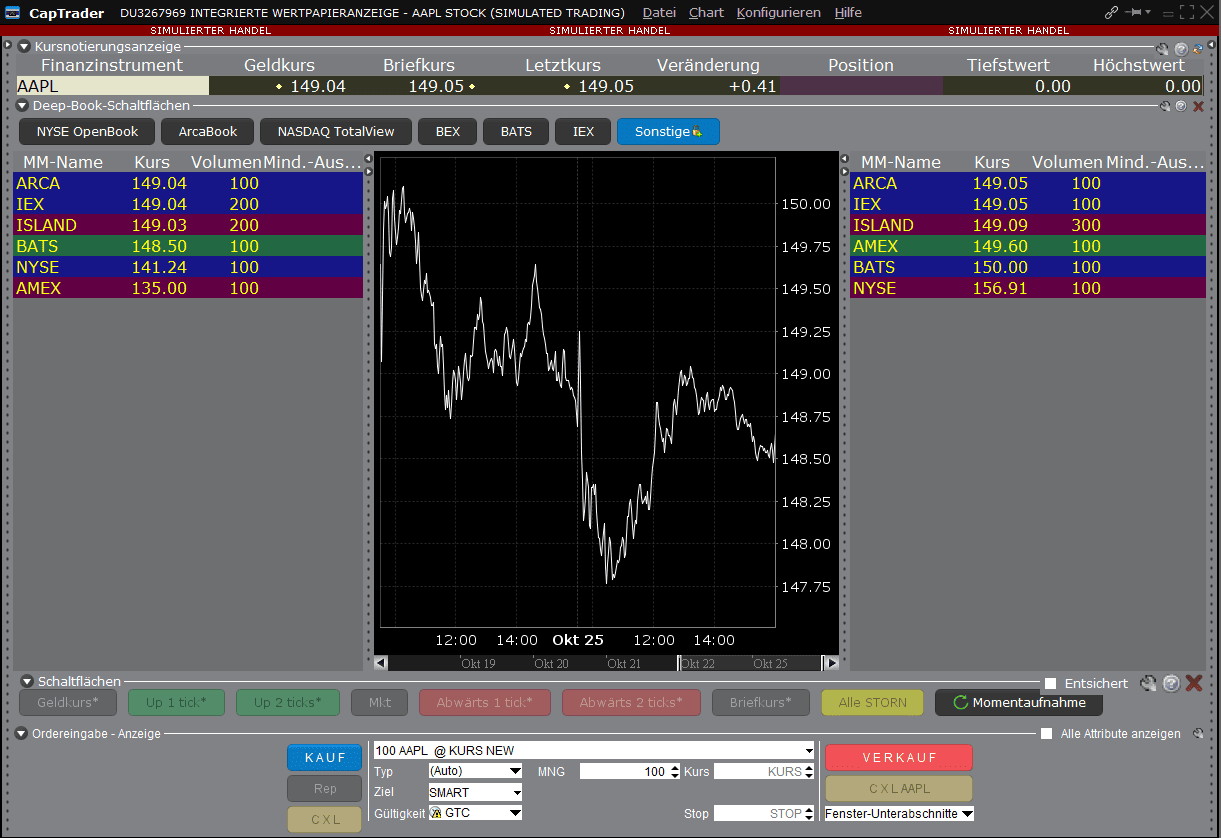
The Book Data Panel
The data panel shows Level I and Level II of sourced and unsubscribed quotes on both sides of a real-time configurable chart. Click a button to add data from a market in the center of the data panel.
- To add data, please click on the market button. The bid price is displayed on the left and the ask price on the right.
- Check your orders by displaying them under pending orders on the ISW configuration page.
Other important Features
ISW Buttons Panel
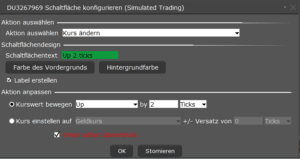
The ISW includes three buttons that can be displayed or hidden via the display menu. The left surface creates a new order in the order line of the OEP, the right surface enables the one-click order. The bottom button is used to modify orders, both new and pending. All buttons can be preset so that orders can be submitted immediately by clicking on the checkbox in conjunction with agreeing to the warning message that appears.
Auto Orders
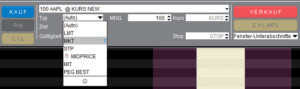
Use the auto-order with your individual, stored presettings and the price criteria you specify. This function saves you the step "Select order type".
The auto-order appears preset in the write field. Click on the current list of supported auto-orders to see from which presets the TWS has selected.
This setting is displayed in the order description. It is important to note the following:
- Only the stored auto order types can be found and selected. All other order types must be called manually using the drop-down menu function.
- The auto-order applies only to new orders. Pending orders are shown in the display field.
Quote Panel

To hide the Quote Panel, deactivate it from the View menu.
To switch between the single-line view and the FT ticker, use the Switch Icon button in the upper left corner of the window.

Open a securities account now and get the Integrated floor window use
Use the modern trading software with exclusive trading tools in your securities account at CapTrader.
Trade worldwide at best conditions with first class customer service.