Connect your CapTrader account to your TradingView account. Please note that there are various (fee-based) subscription plans with TradingView. On this page we present the Connection to the free basic subscription at TradingView and show you how to place a stock trade at TradingView with your CapTrader account.
TradingView is a charting platform and social network used by more than 30 million traders and investors worldwide to identify opportunities in global markets.
You can find all information about the range of functions, prices and other services on the page: https://de.tradingview.com/
TradingView videos: In addition to the information on this page, you are also welcome to use the videos in the exclusive client area at CapTrader Plus (TRADINGVIEW TUTORIALS category).
Video quick guide: Connect TradingView with CapTrader
Registration with TradingView (free basic subscription)
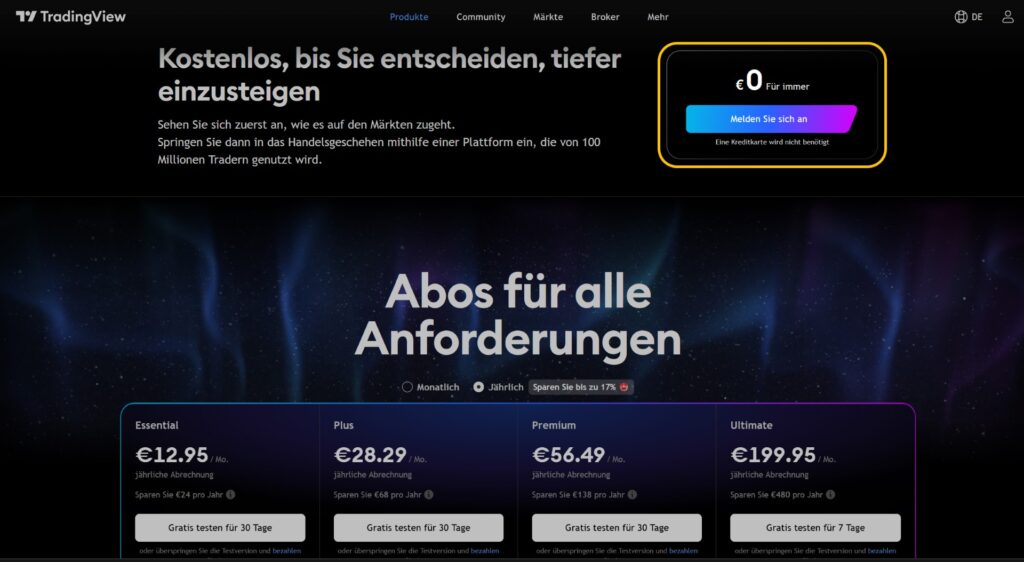
Go to the website of https://de.tradingview.com/ and click there on the button > Let's go.

Now select your personal subscription model at TradingView. For this tutorial we choose the button > Log in.
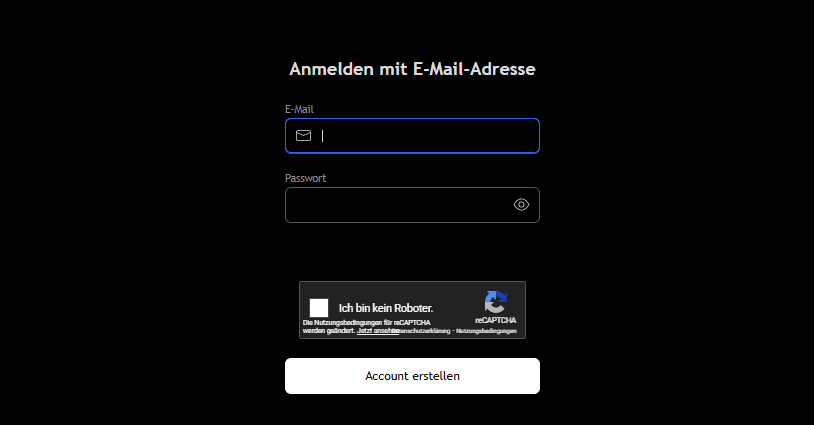
Now enter your e-mail address and a password, confirm the reCAPTCHA and finally click on the > button. Create account.
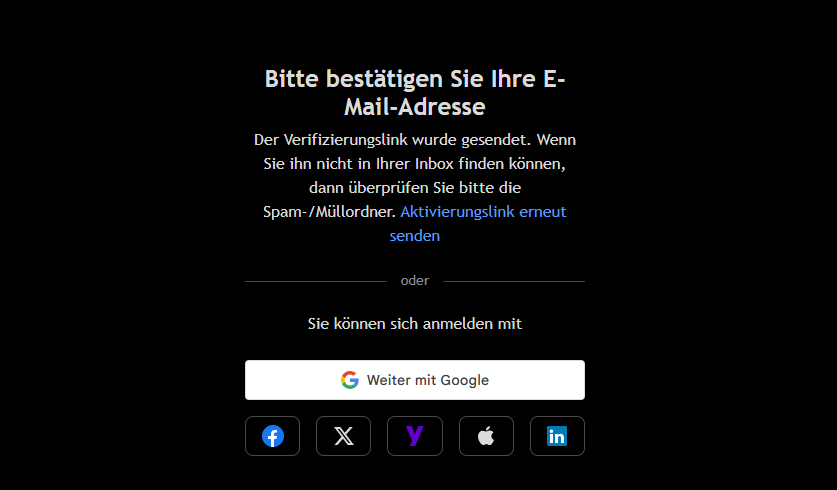
You will now receive a confirmation e-mail. Please click on the button > Activate account and follow the instructions there. Your TradingView account has now been created.
Connection of the CapTrader depot with TradingView
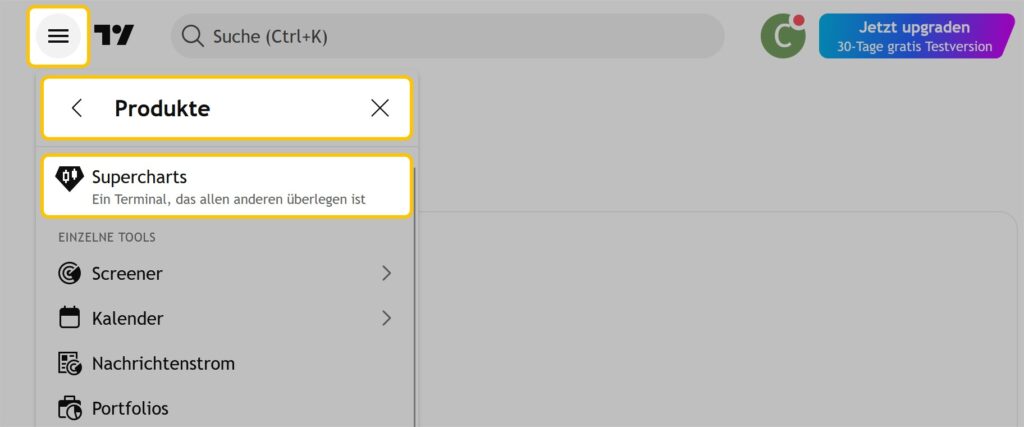
After you have registered on the TradingView website with your access data, please select the path > Products and then >Supercharts off.
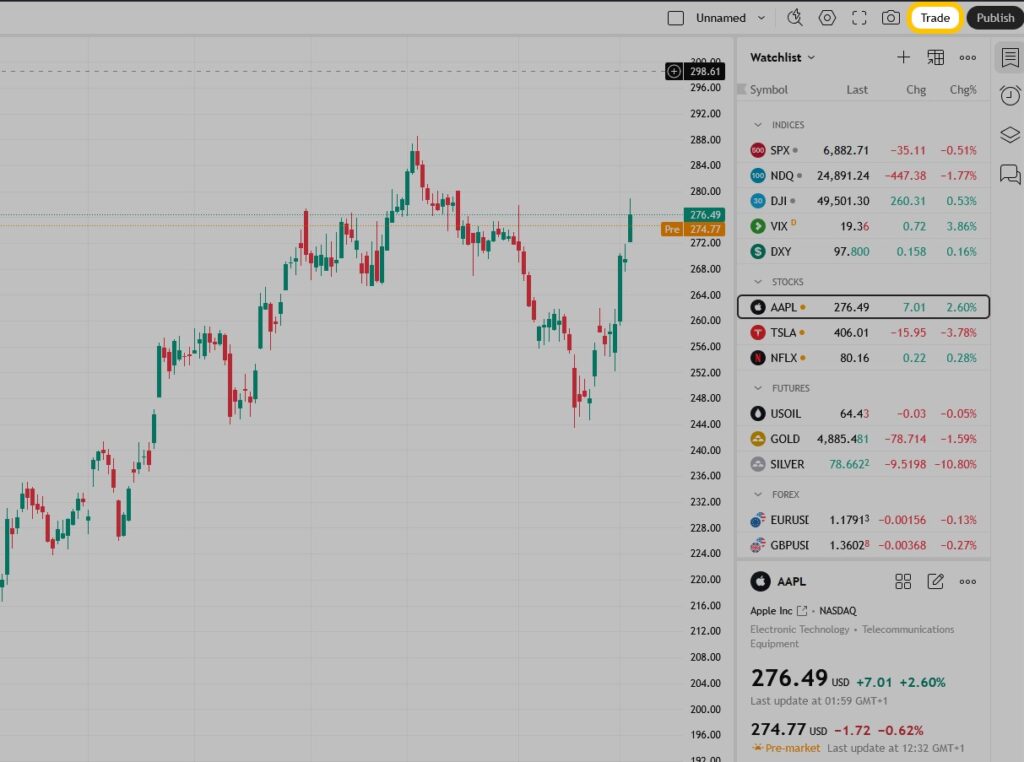
Now select the menu item > Trade.
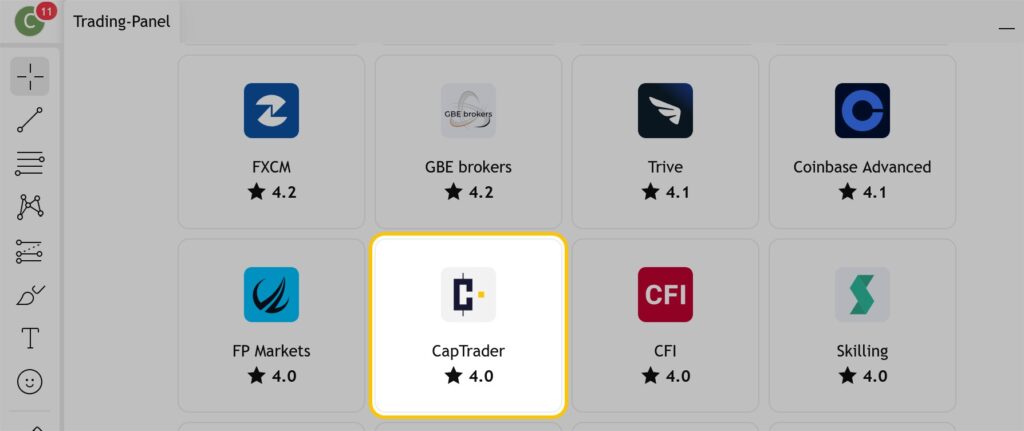
If you have your Residence in Germany have:
Now select the button > CapTrader off.
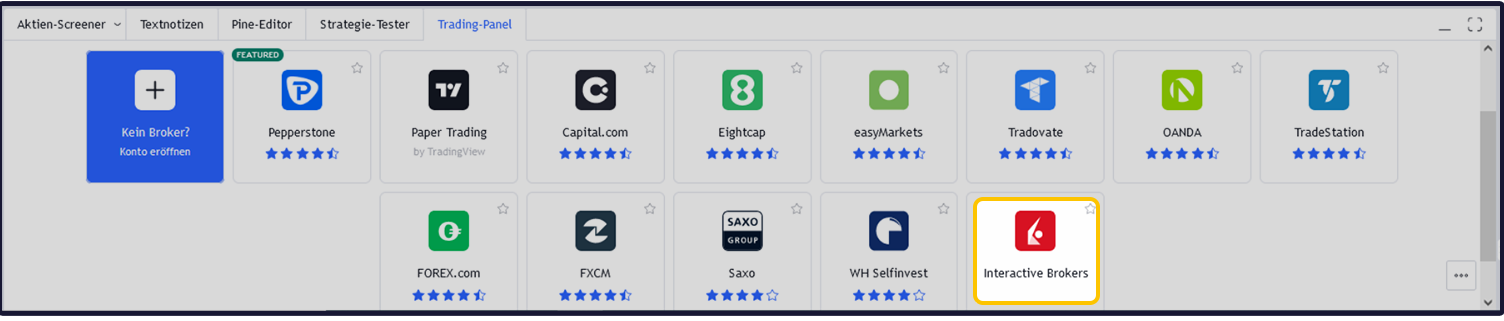
If you have your Residence outside Germany have:
Now select the button > Interactive Brokers.
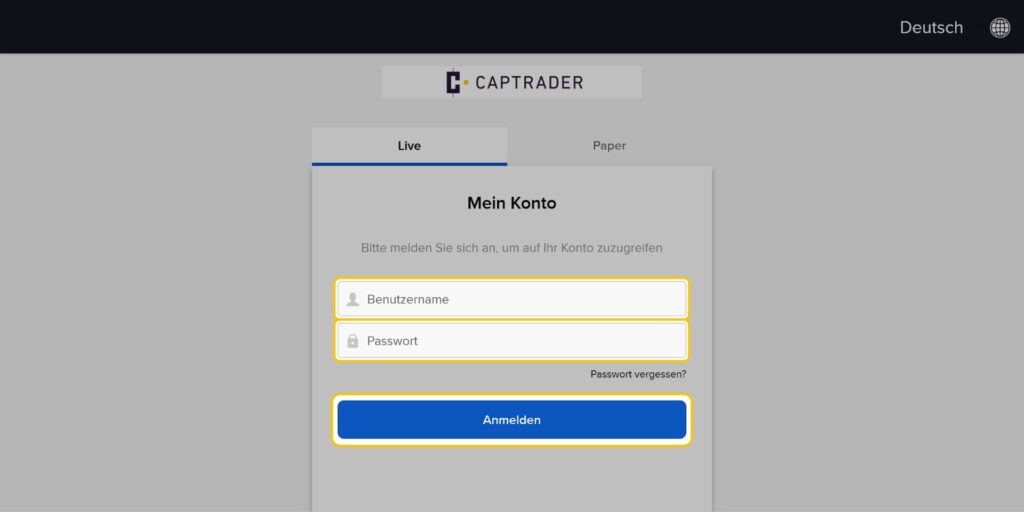
In the next step, enter your CapTrader access data (username and password) in the corresponding fields.
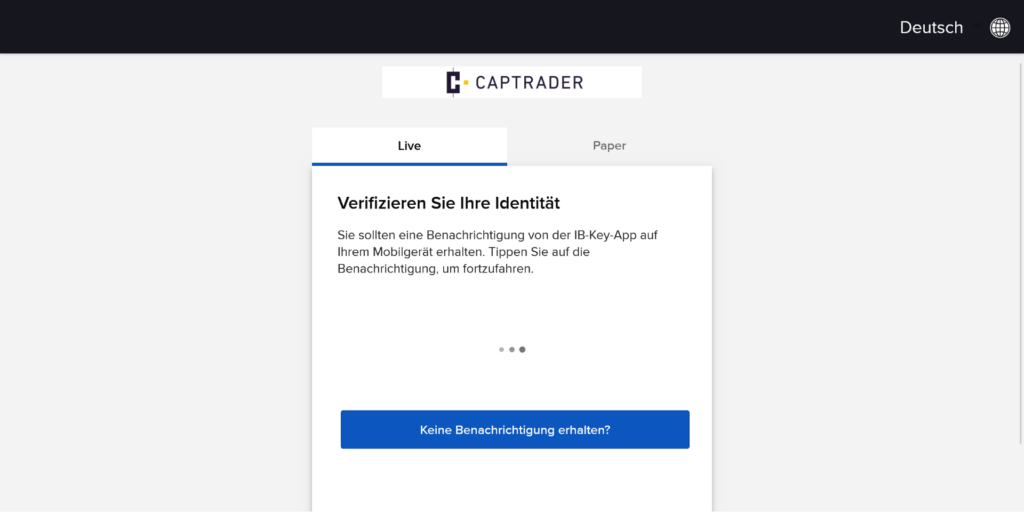
Please complete the authentication process by verifying your identity (app).
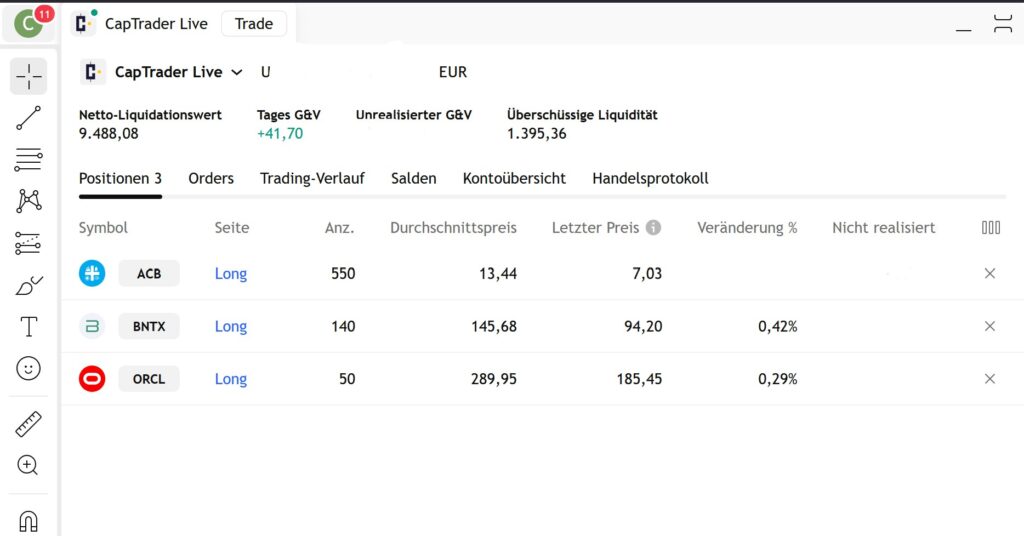
The connection between TradingView and your CapTrader portfolio is now established and you can see your portfolio in the TradingView platform.
Buying a stock on TradingView
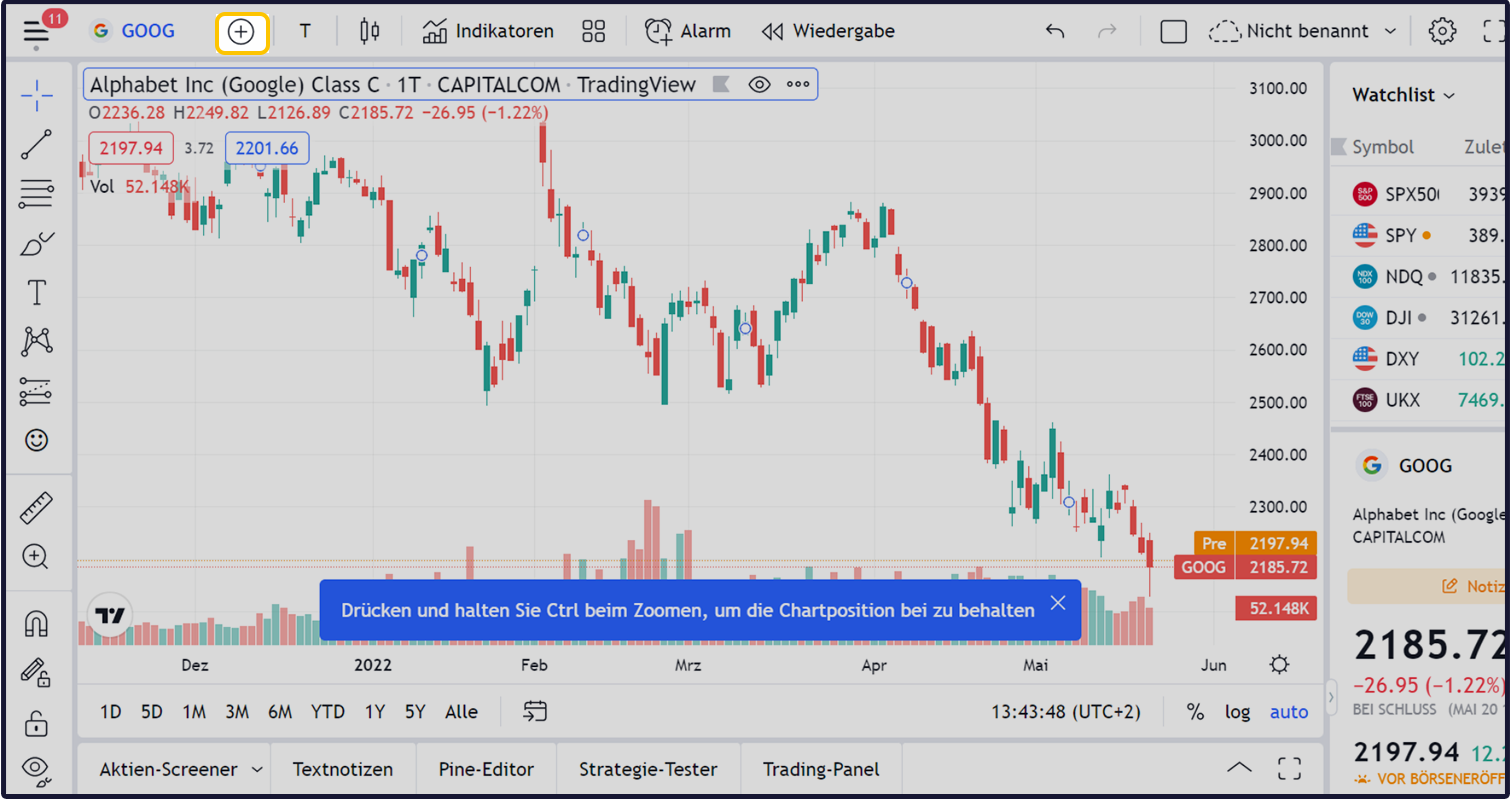
To order a stock with TradingView, please click on the PLUS button in the upper left corner.
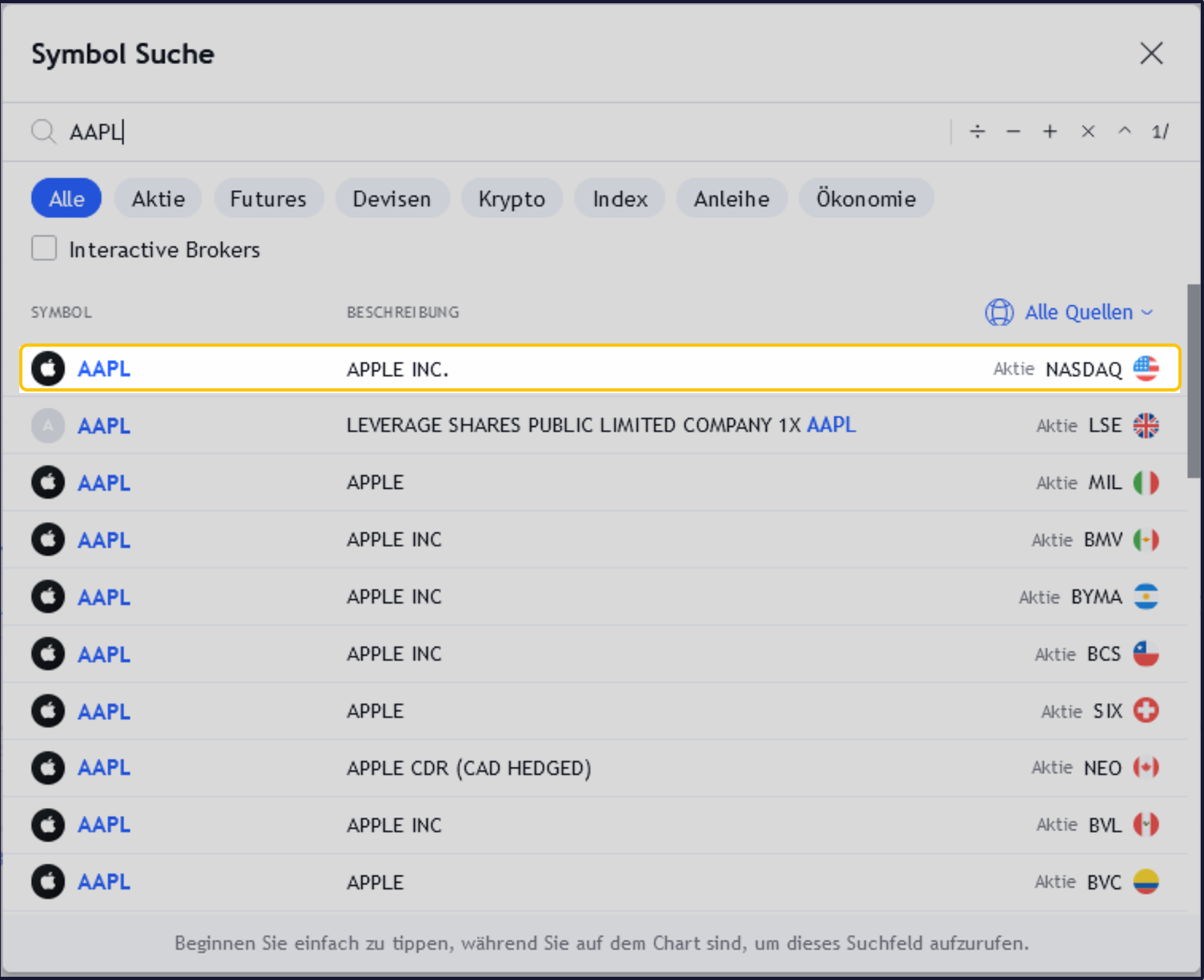
In our example, we would like to purchase an Apple stock on the NASDAQ stock exchange directly in the USA. To do this, we now enter the symbol AAPL in the search and select the stock exchange NASDAQ.
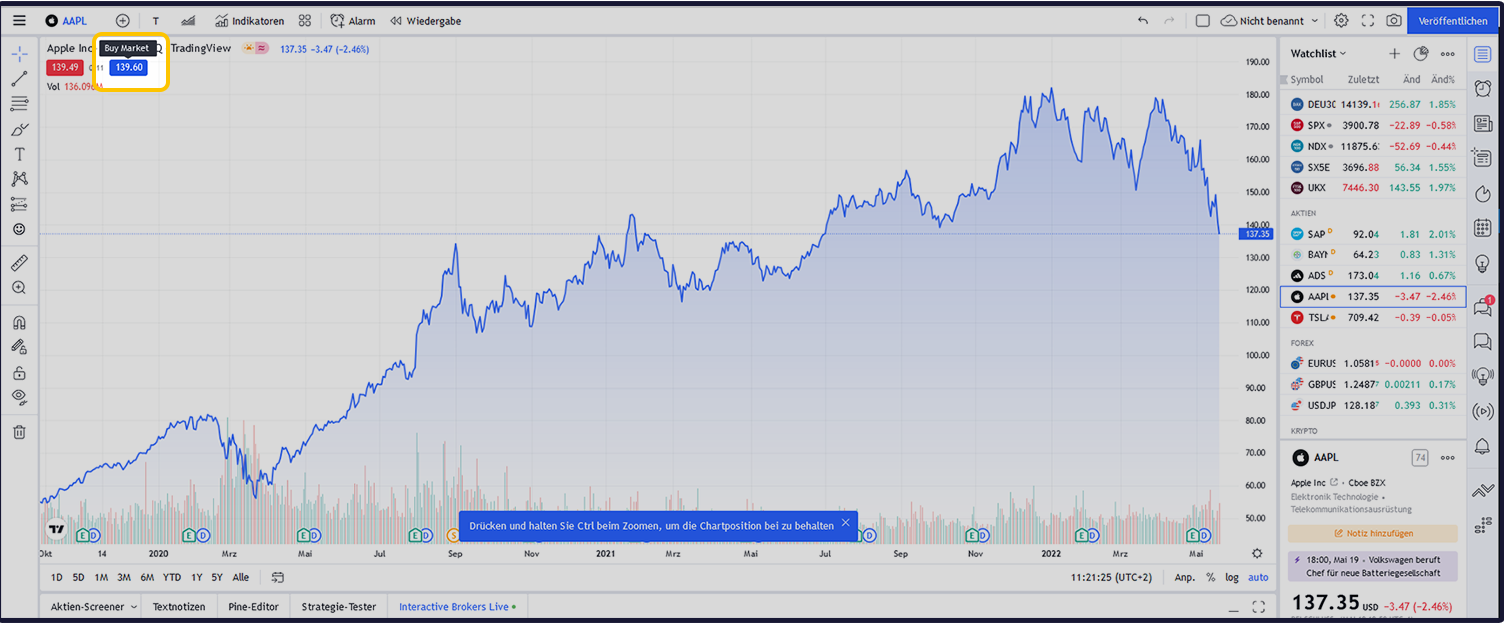
To buy the Apple stock, we now click on the blue button (Buy Market).
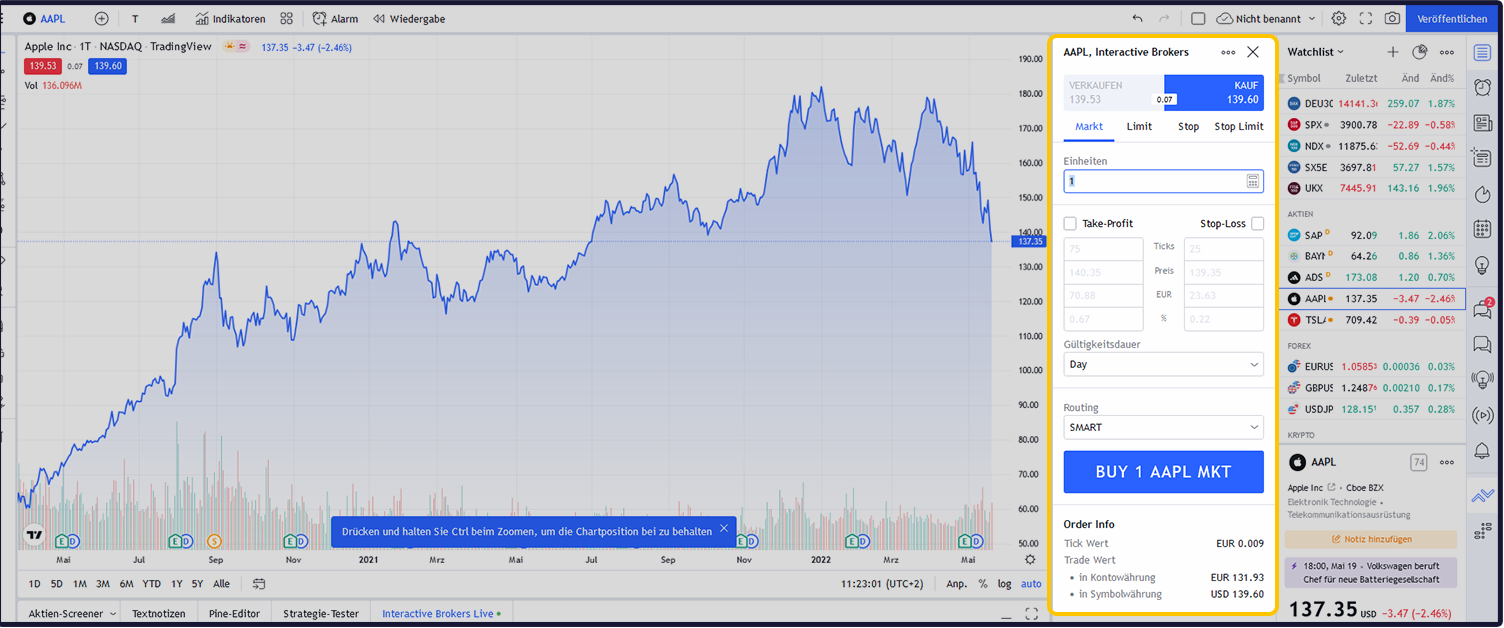
Now the order ticket opens on the right side. Here we enter our order details as follows:
- Order type: Market (MKT)
- Quantity: 1
- Term of the order: DAY (valid for the day)
- Routing Destination: SMART
Afterwards we click on the blue buy button > BUY 1 AAPL MKT
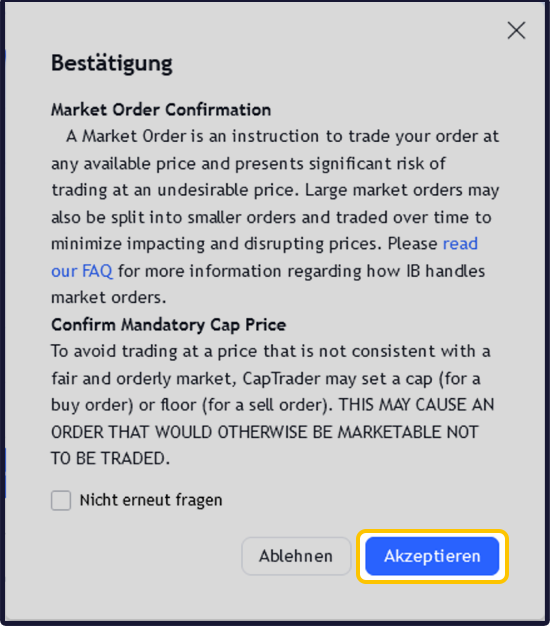
Now we confirm the order type Market order (MKT) by clicking the button > Accept.
The order has now been placed.
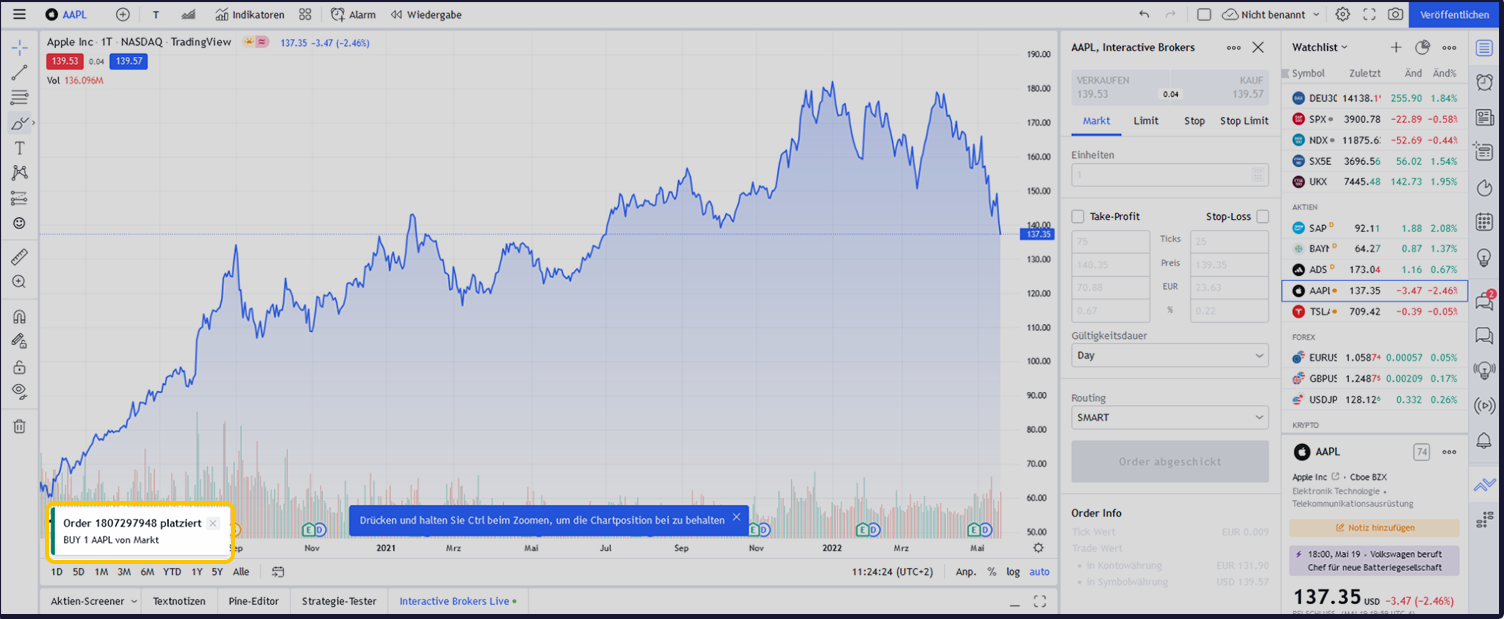
The open order is now displayed in TradingView in the menu item > Active displayed
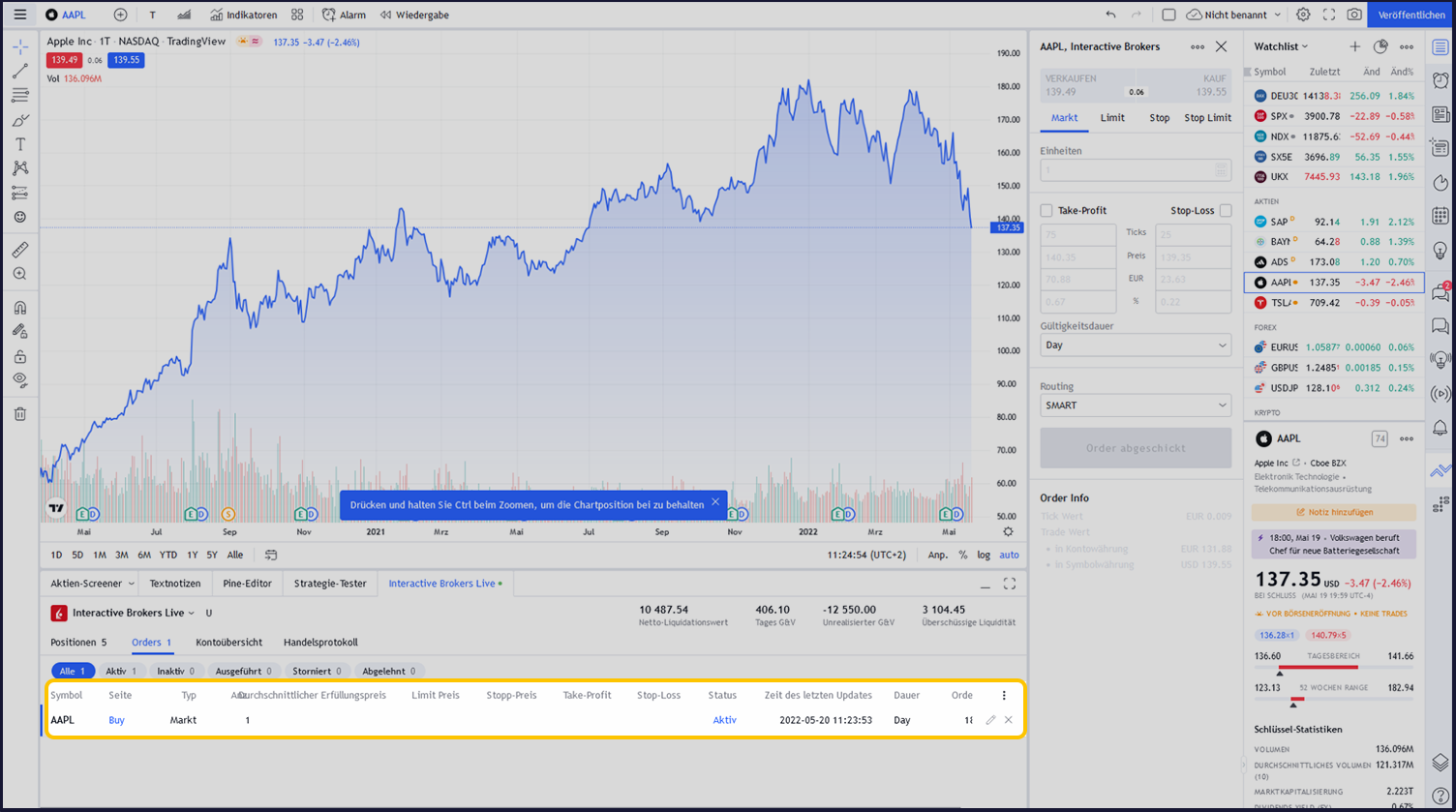
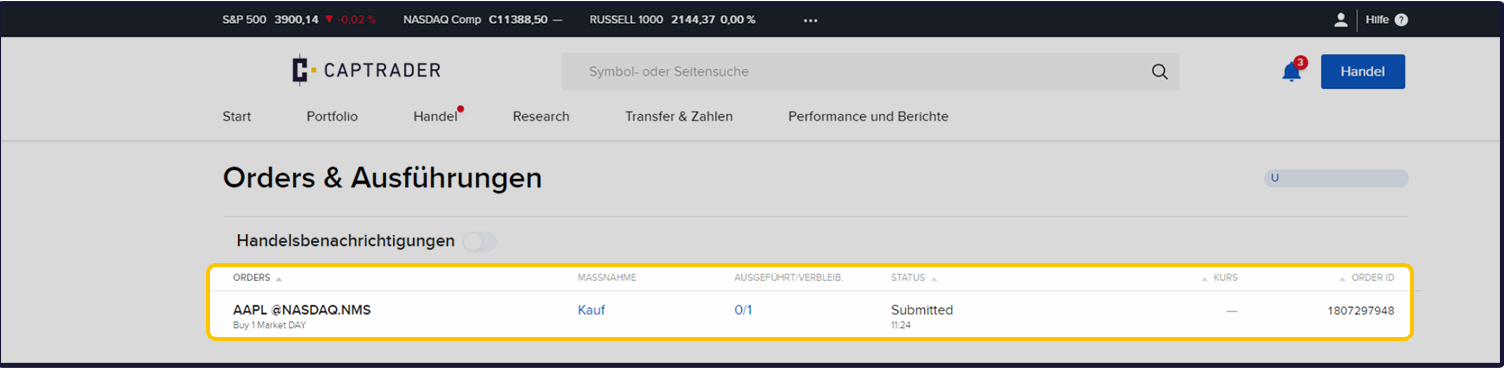
The open order is now also displayed system-wide in the Account management at CapTrader (and of course also in the TWS and the app).