If you use both the CapTrader CapTrader Trading App as well as the CapTrader Easy App on an end device, one of the two apps must be configured as an authentication device. This is usually the trading app. We have therefore compiled instructions on this page on how to use the Trading App as an authentication device for the Easy App.
In advance: Installing the apps on your smartphone
If you have not already done so, download the desired CapTrader apps from the Google Playstore or the Apple App Store free of charge. You will find the links by clicking on the respective button:
App
IOS
Android
CapTrader App
Easy App
Instructions: Authentication in the iOS apps
Once you have successfully installed the apps on your smartphone, follow the instructions below to authenticate yourself.
Step 1: Registration
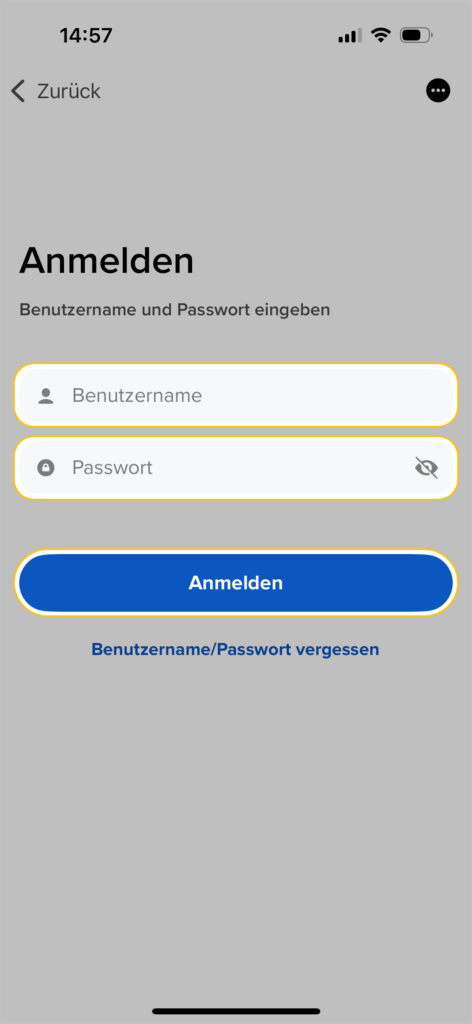
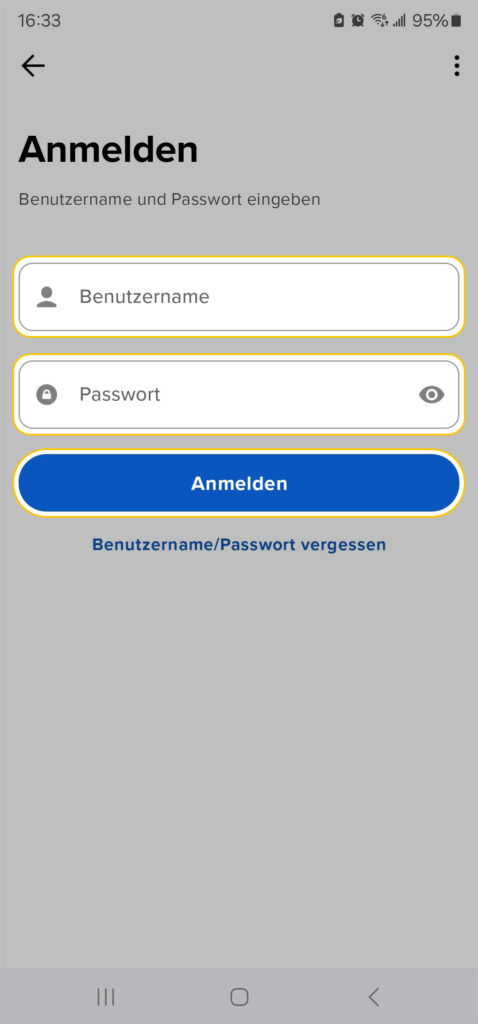
Open the Easy App on your phone and enter your login details (username and password). Then, click the "Login" button.
Step 2: Two-factor authentication
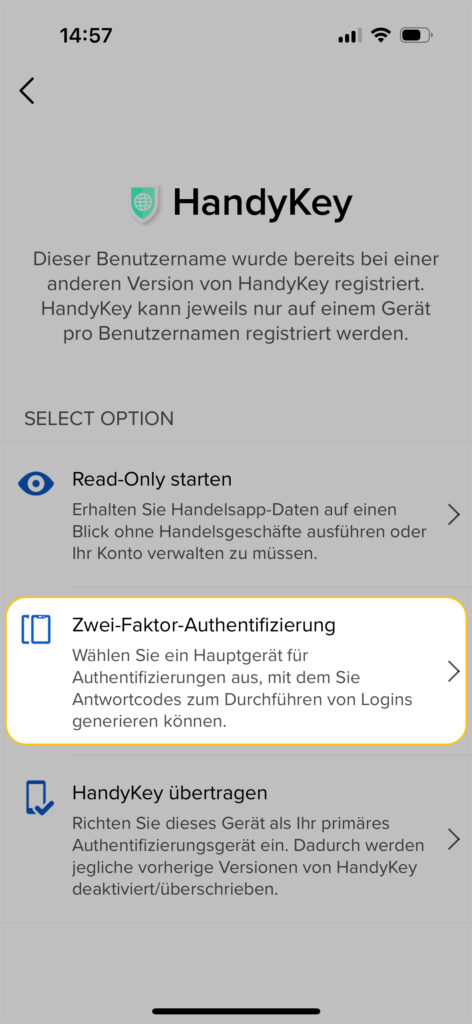
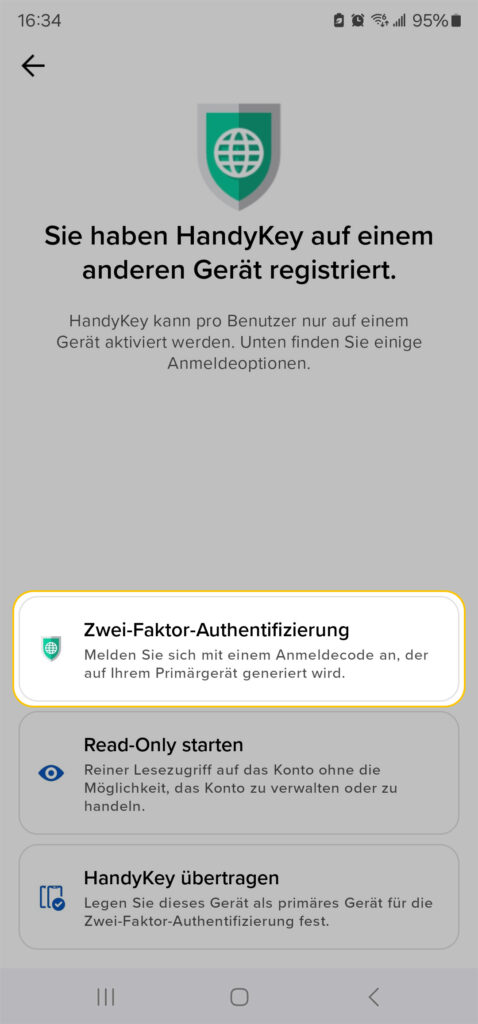
Now select the menu item > Two-factor authentication.
Step 3: Security code query
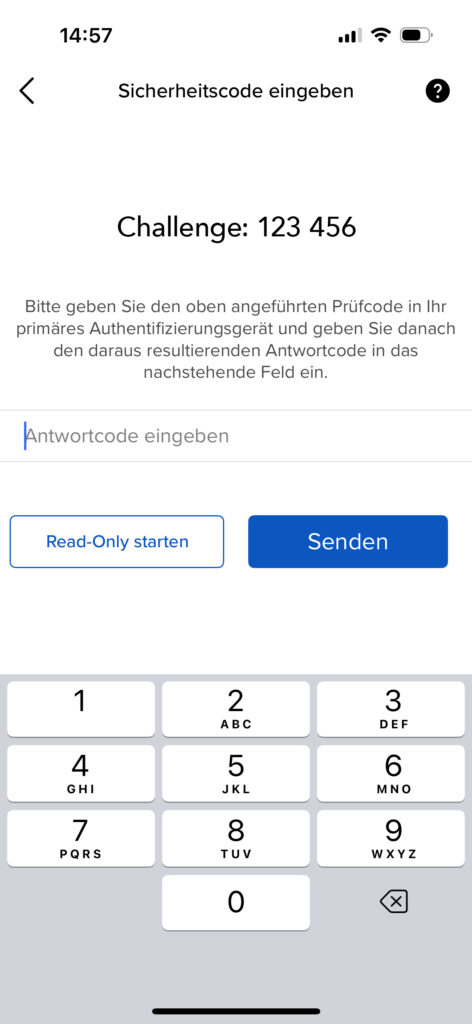
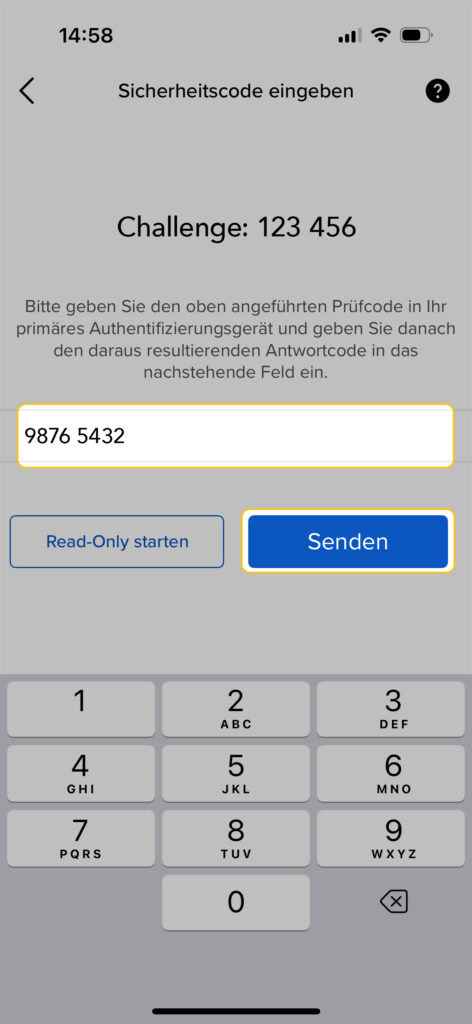
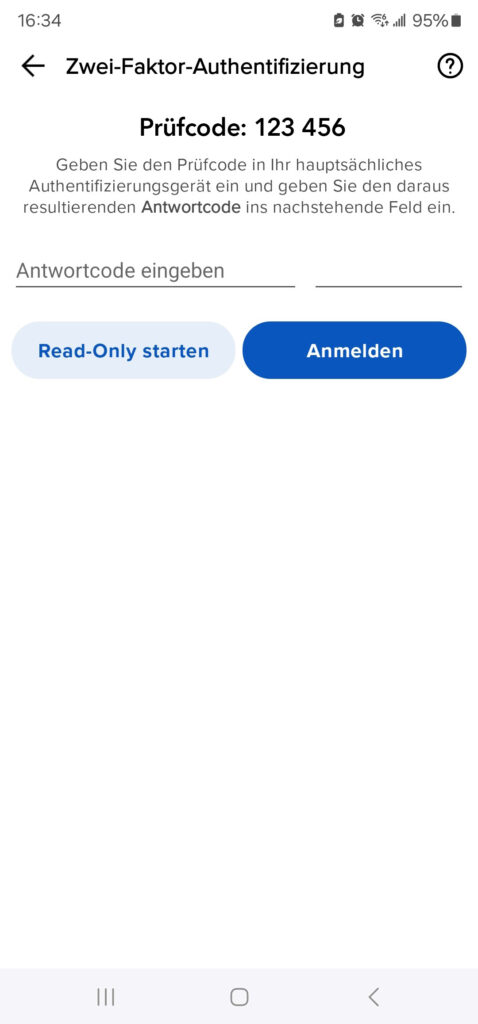
Now note or memorize the six-digit security code (example: 123 456) so you can enter it into the CapTrader Trading App.
Step 4: Select IBKey
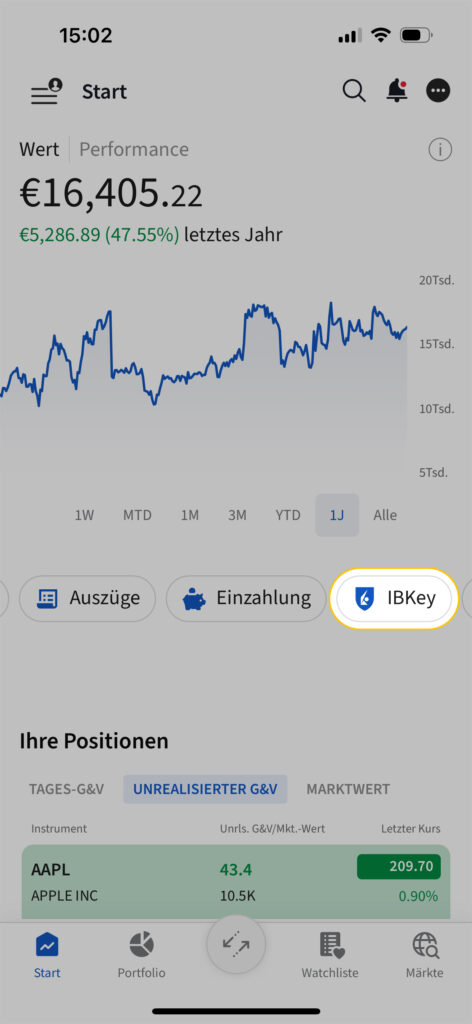
Now switch from the Easy App to the Trading App and select Application > IBKey there. If you do not find it under the > START menu item, please click on the PLUS symbol in the row of these menu items and add > IBKey as a new menu item.
Step 5: Generate response code
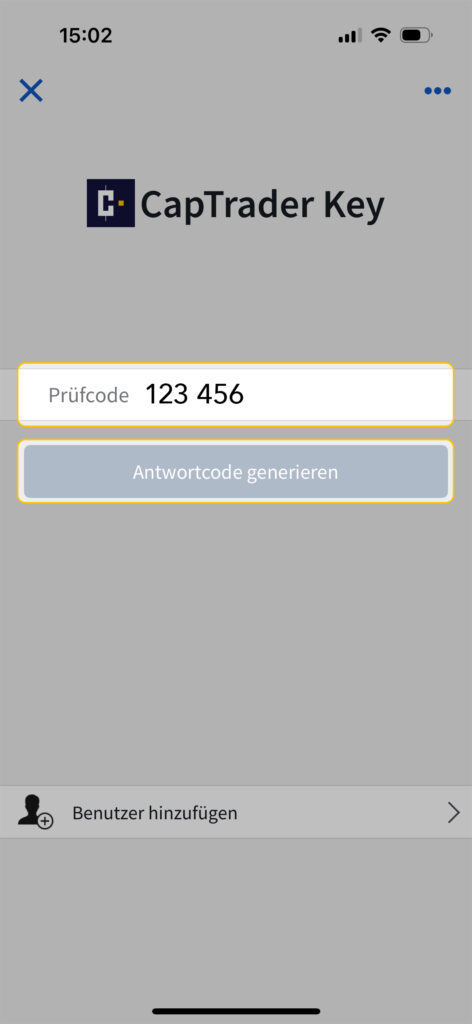
Now enter the six-digit security code (from the Easy app) here in the field and then click the button >GENERATE ANSWER CODE. In the example here, this is 123 456.
Step 6: Copy response code
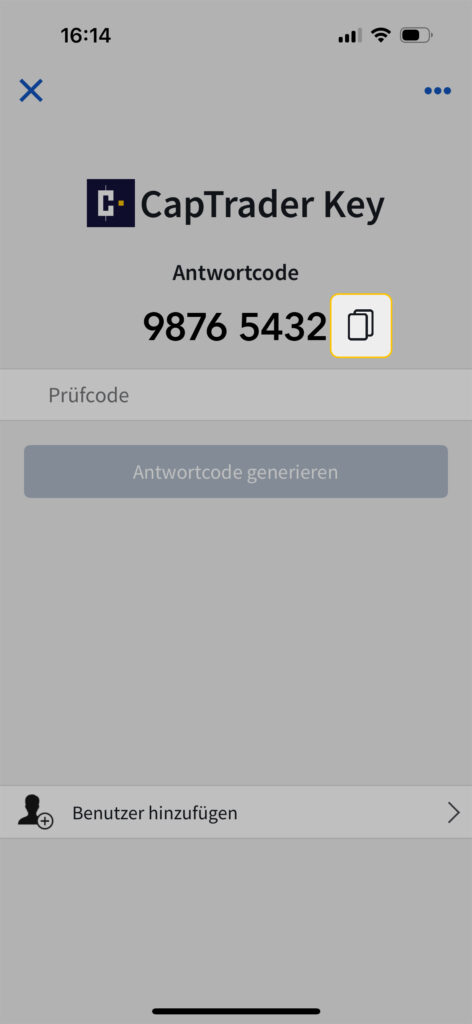
The app has now generated a response code for you (in the example this is 9876 5432). Copy this code by clicking on the > COPY icon or make a note of this eight-digit code.
Step 7: Enter security code
Now switch back to the Easy App and enter the response code into the field. Then click the "SEND" button.
Step 8: Confirm new session
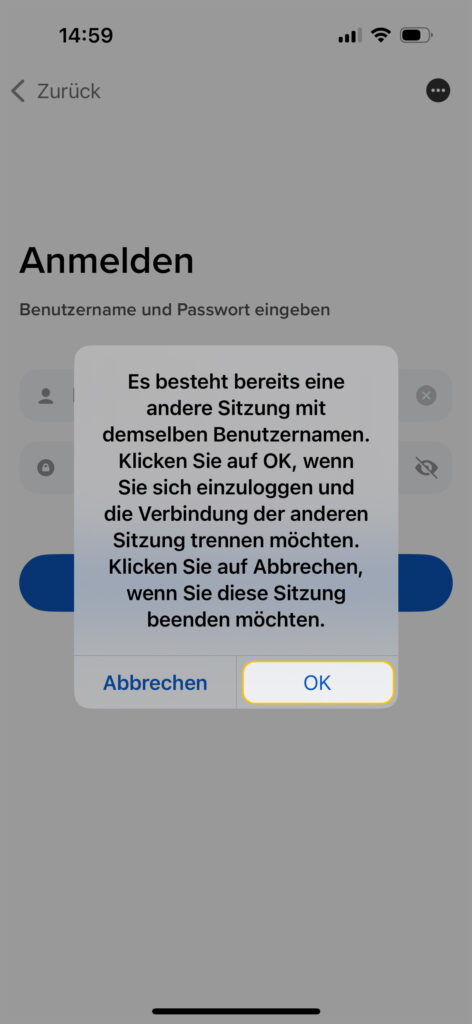
Please confirm that you wish to use the Easy App now (and will therefore be logged out of the Trading App for the moment) by clicking the > OK button.
The Easy App can now be used fully.
Instructions: Authentication in the Android apps
Once you have successfully installed the apps on your smartphone, follow the instructions below to authenticate yourself.
Step 1: Registration
Open the Easy App on your phone and enter your login details (username and password). Then, click the "Login" button.
Step 2: Two-factor authentication
Now select the menu item > Two-factor authentication.
Step 3: Security code query
Now note or memorize the six-digit security code (example: 123 456) so you can enter it into the CapTrader Trading App.
Step 4: Login
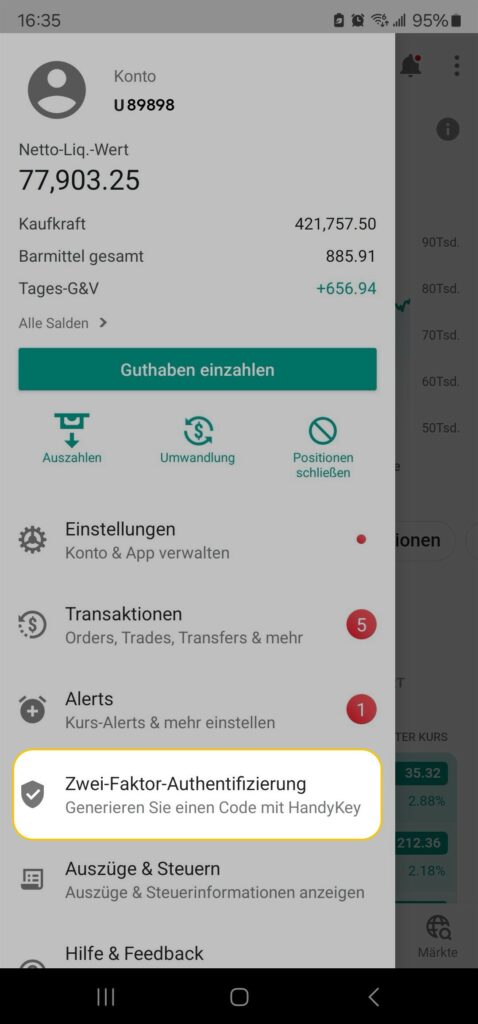
Now switch from the Easy App to the Trading App, select the menu in the top left corner, and then click on the "Two-Factor Authentication" option.
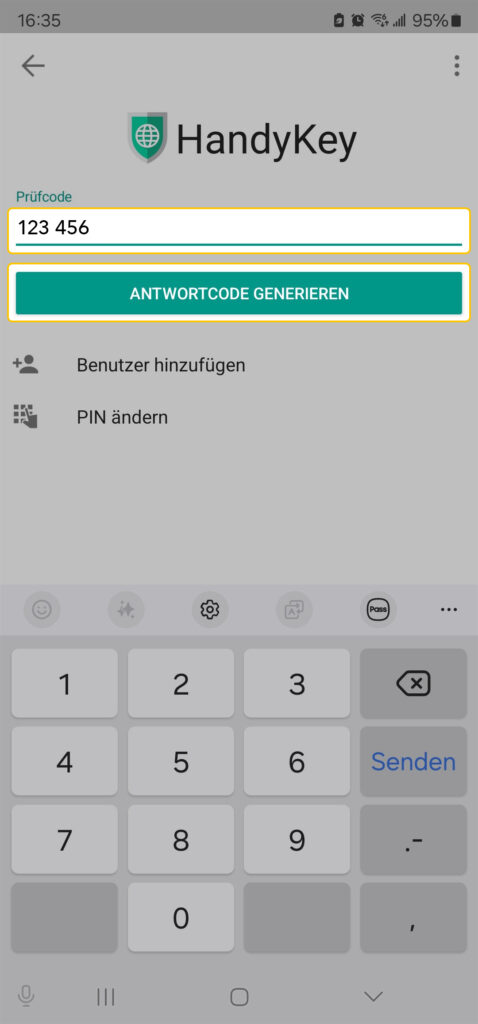
Step 5: Generate response code
Now enter the six-digit security code (from the Easy app) here in the field and then click the button >GENERATE ANSWER CODE. In the example here, this is 123 456.
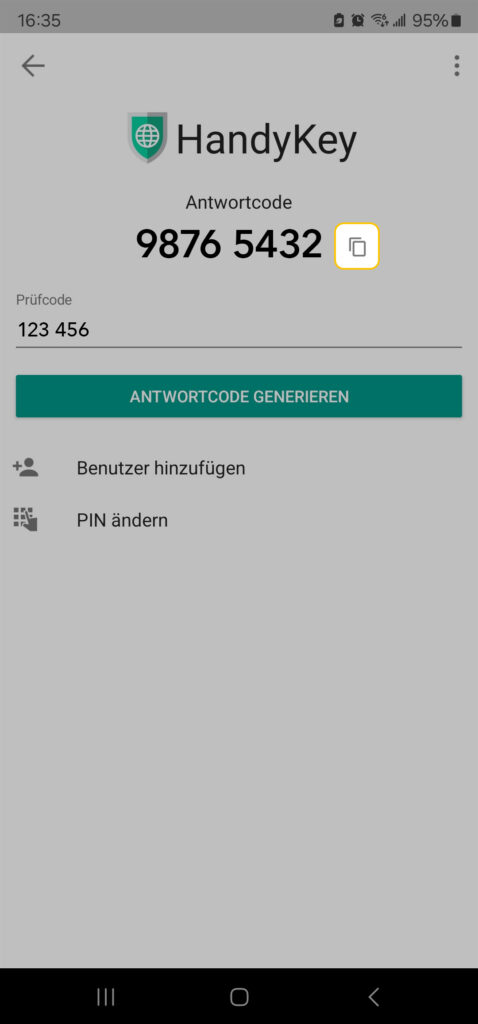
Step 6: Copy response code
The app has now generated a response code for you (in the example this is 9876 5432). Copy this code by clicking on the > COPY icon or make a note of this eight-digit code.
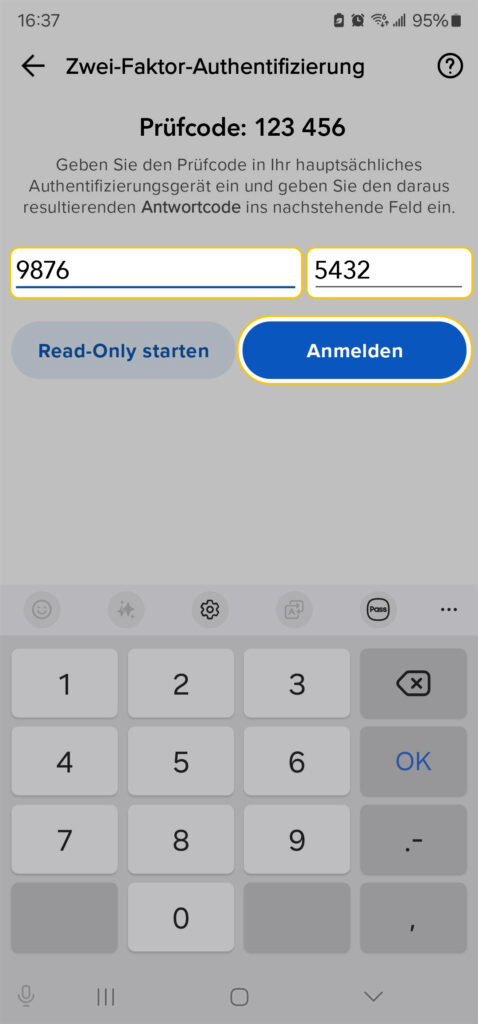
Step 7: Enter response code
Now switch back to the Easy App and enter the response code into the field. Then click the > LOGIN button.
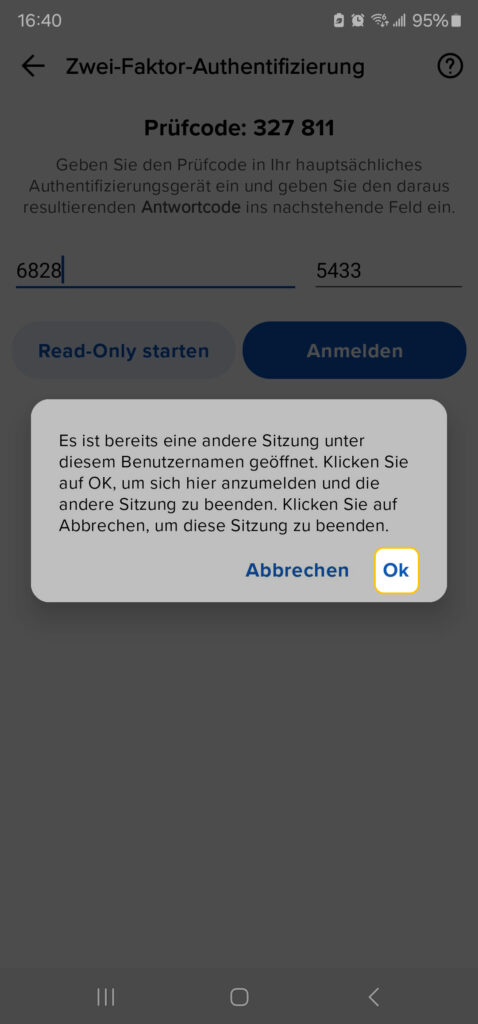
Step 8: Confirm new session
Please confirm that you wish to use the Easy App now (and will therefore be logged out of the Trading App for the moment) by clicking the > OK button.
The Easy App can now be used fully.
You are currently viewing placeholder content from Google Maps. To access the actual content, click the button below. Please note that doing so will share data with third-party providers.
You are currently viewing placeholder content from Facebook. To access the actual content, click the button below. Please note that doing so will share data with third-party providers.