


Would you like to have account statements sent to you by e-mail every month or even every day? Then we will show you on this page how you can configure the delivery with just a few clicks.
The notifications will be sent to the address specified in the account management (Client Portal). Registered email sent. We recommend that you check the e-mail address first and adjust it if necessary. Then you can configure the delivery for account statements.
Dialing into the account management (Client Portal)
Sign up in the Account Management (Client Portal) and then click the path > Reports > Bank statements.
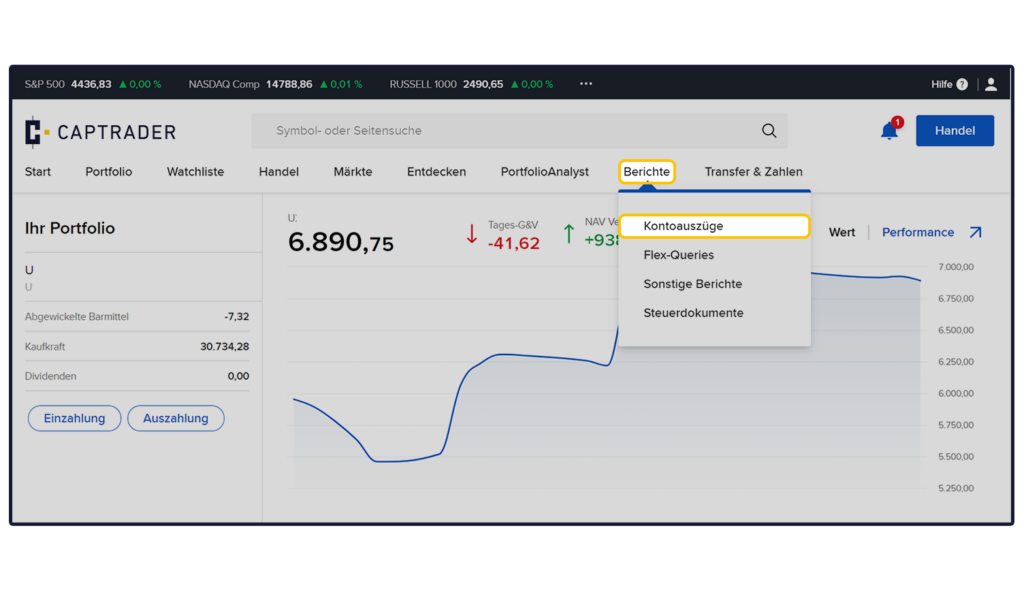
Now click in the category > Bank statement delivery on the > Configure icon.
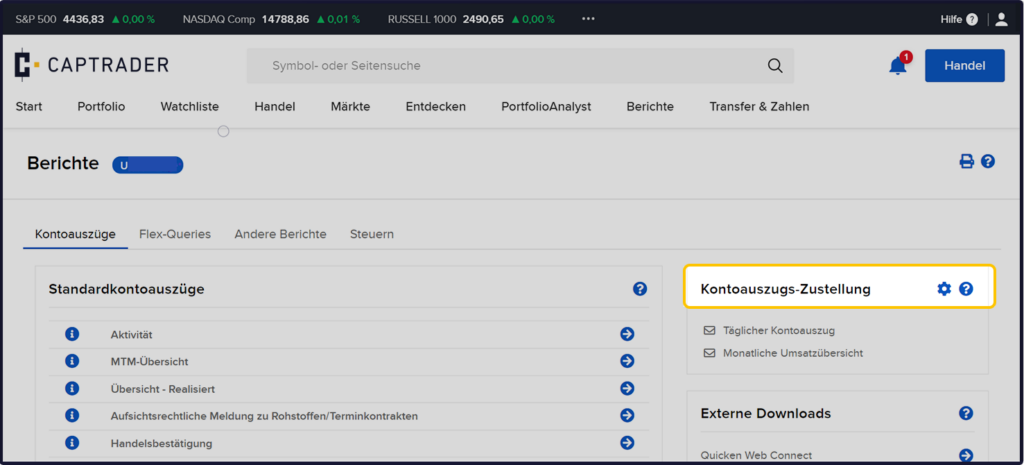
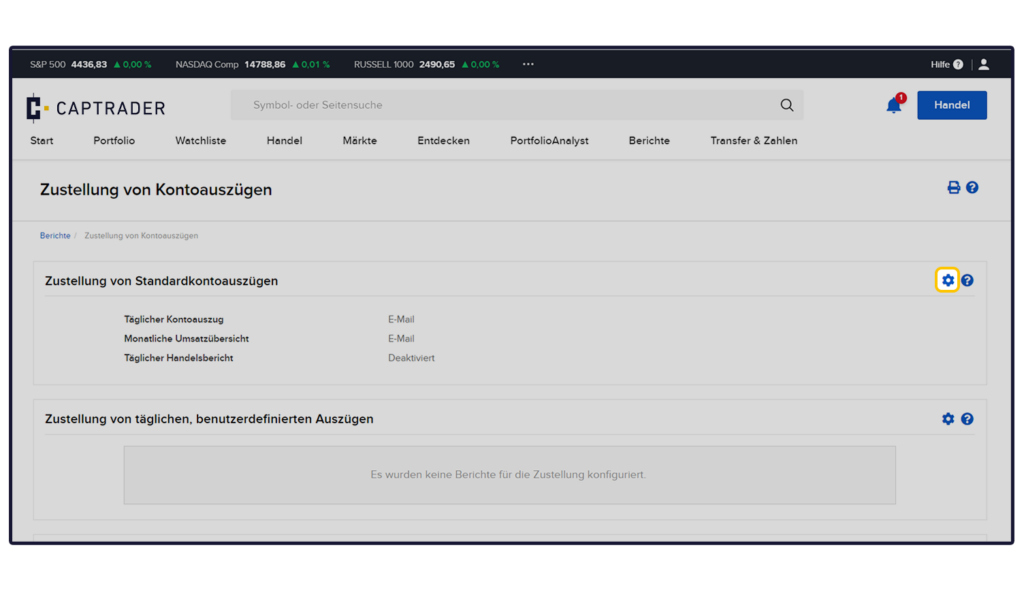
Now click in the category > Delivery of standard account statements on the > Configure icon.
Tip: If you have configured your own statements (e.g. an account statement only for dividend receipts on your securities account), you can access them here on this page in the category > Delivery of daily, user-defined statements configure their delivery.
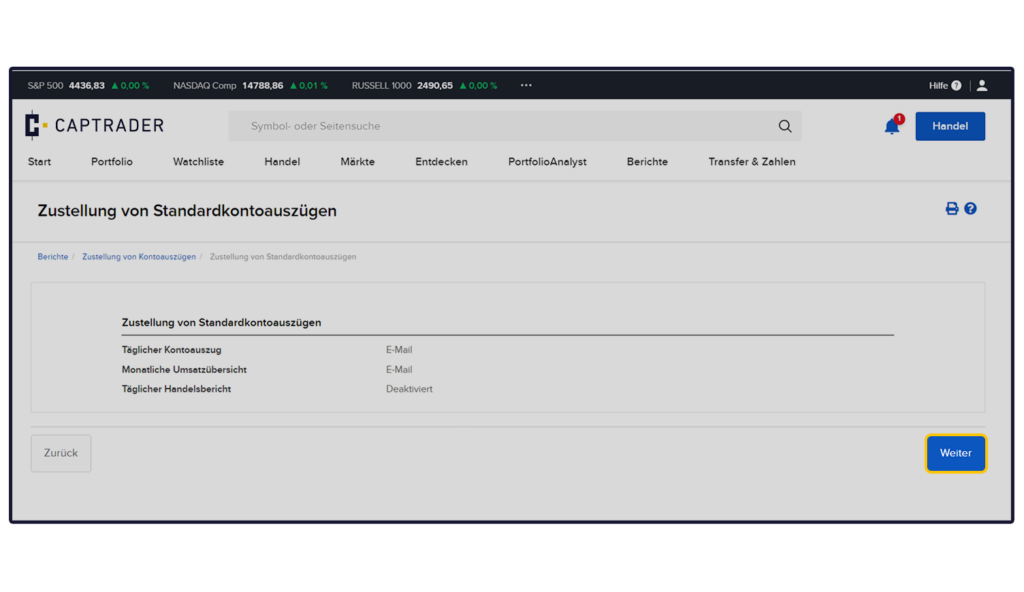
On this page please click on the button >Continue.
Selection of delivery options for the account statement
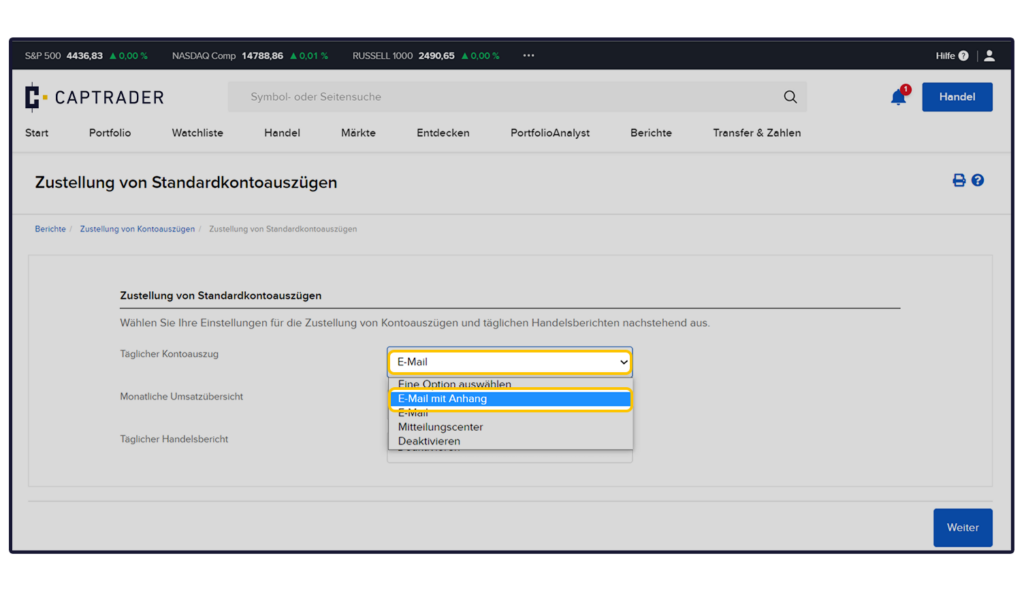
Now select for each of the three pull-out types
- Daily bank statement
- Monthly turnover overview
- Daily trade report
to select your desired delivery option:
- Email with attachment: The e-mail contains directly the requested extract as PDF in the attachment
- Email: You will receive an email indicating a new statement in account management
- Message Center: You will receive a message in your account management about a new account statement
- Disable: You will no longer receive regular notification
Afterwards please click on the button >FURTHER.
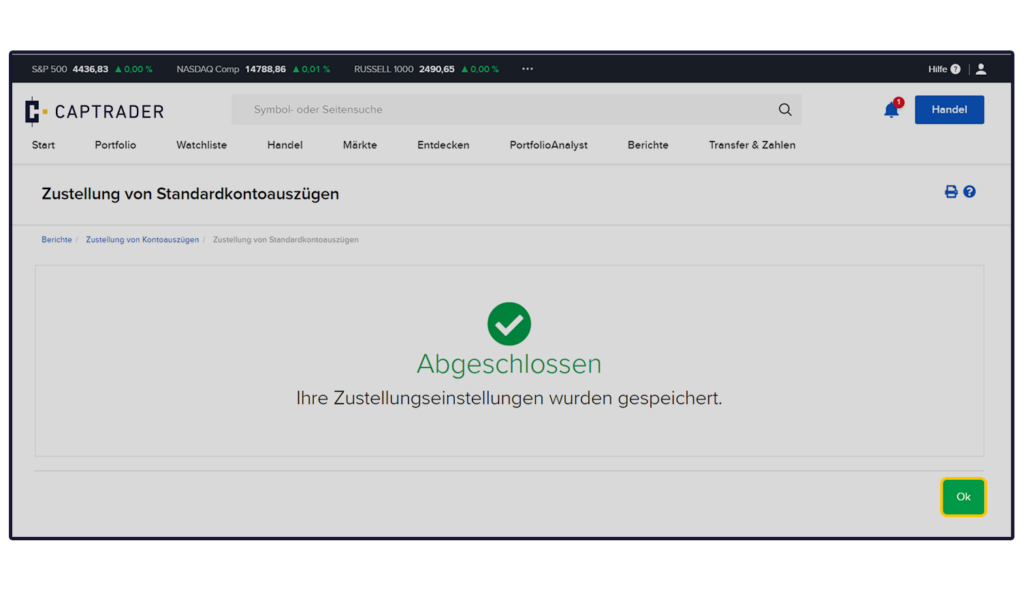
Your change requests have now been saved. Now complete the process by clicking on the button >OK click.
If you have any further questions about the excerpts, please feel free to use the Reporting Reference Guide (currently in English only): Reporting Reference Guide