


With the CapTrader app, you have the convenient option of receiving timely information via e-mail about the market in general, your account movements and the associated exceeding of the limits you have set for e.g. profits and losses or your margin.
Use the instructions listed here for setting this function depending on the device type:
Instructions for Android devices
Instructions for account management (Client Portal)
INSTRUCTIONS FOR IOS DEVICES
1. SELECTION OF THE TRADING ASSISTANT
Please select the item >More in the app at the bottom right.
Afterwards, select the >Trading Wizard.
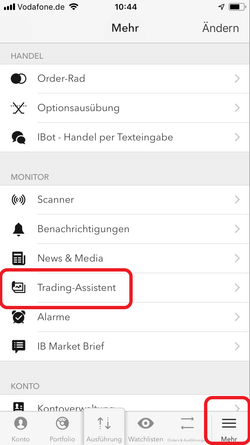
2. CONFIGURE NOTIFICATIONS
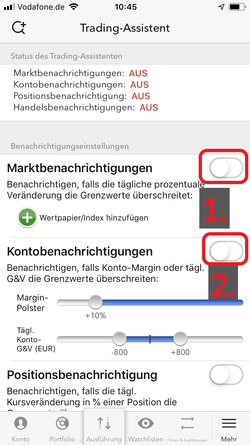
Now select the desired notification by moving the slider (circled in red in the example image) to the right. If you want to deactivate previously activated notifications, move the slider to the left accordingly.
In the menu item >Status of the Trading Assistant you can see the current status of your notifications. Here in the example, all four notification options are set to >OFF
You can use the following notification options:
- Market notifications
Here you can set yourself an alarm when securities or indices exceed limits you set (example: Apple stock falls more than 10%). - Account notifications
Here you can create a notification for yourself in case your account margin exceeds a threshold and/or your daily profit/loss exceeds limits set by you (in the example picture the profit/loss is -800 and + 800). - Position notifications
Here you can set a notification in case the daily price change in percent of a position exceeds the set limit (in the example screen this change is between -2% and + 2%). - Trade notifications
Get an email notification for each of your trades - Your e-mail address
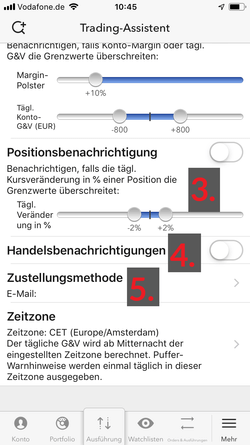
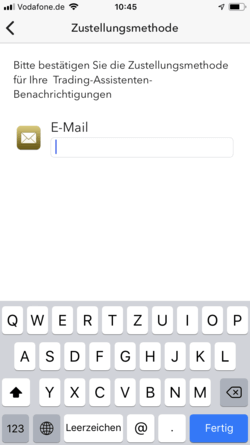
3. ENTER YOUR E-MAIL ADDRESS
Now enter your e-mail address under >Delivery method.
Notifications are sent immediately afterwards.
INSTRUCTIONS FOR ANDROID DEVICES
1. SELECTION OF THE TRADING ASSISTANT
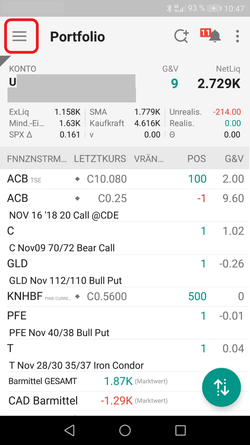
Please select the menu in the top left corner of the app (red marking)
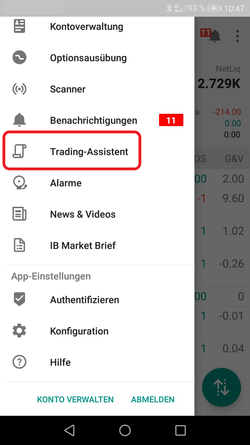
Afterwards, select the >Trading Wizard.
2. CONFIGURE NOTIFICATIONS
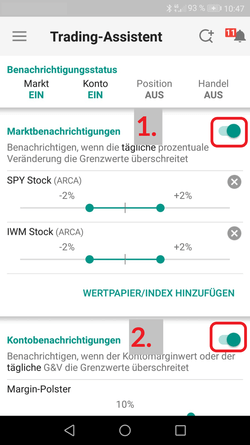
Now select the desired notification by moving the slider (circled in red in the example image) to the right. If you want to deactivate previously activated notifications, move the slider to the left accordingly.
In the menu item >Status of the trading assistant you can see the current status of your notifications. Here in the example, >Market and >Account are set to:ON, >Position and >Trade are set to:OFF.
You can use the following notification options:
- Market notifications
Here you can set an alarm when securities or indices exceed limits you set (example: SPY Stock (Arca) from -2% to +2%). - Account notifications
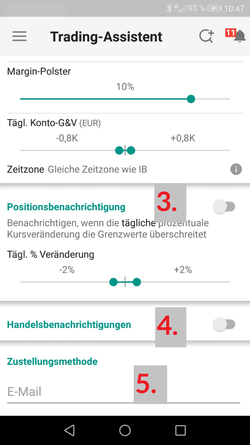
Here you can create a notification for yourself in case your account margin exceeds a threshold and/or your daily profit/loss exceeds limits set by you (in the example picture the profit/loss is -800 and + 800). - Position notifications
Here you can set a notification in case the daily price change in percent of a position exceeds the set limit (in the example screen this change is between -2% and + 2%). - Trade notifications
Get an email notification for each of your trades - Your e-mail address
3. ENTER YOUR E-MAIL ADDRESS
Now enter your e-mail address under >Delivery method (point 5 in Fig.3/Fig.4).
Notifications are sent immediately afterwards.