


There is a simple method for displaying a series of options, a so-called option chain, in the TWS: First open the Option trader and simply enter the underlying symbol in the input field at the top left and press "Enter". Now select the corresponding entry in this view.

Configuration of the option chains
There are two layouts for displaying options: List view and Tab view. Let's take a look at both.
Tab view
In the tabbed view, call options are displayed on the left-hand side and put options on the right-hand side of the window.

The exercise price (strike price) is displayed in the middle column. If you move the mouse pointer over the strike price, a pop-up is displayed showing the distance to the underlying in standard deviations. The middle column is color coded to indicate how far away the strike price is from the price of the underlying.
Solid blue colors indicate options close to the money (ATM), while lighter blue and grey colors increasingly indicate options outside the money (OTM).
The current underlying value is shown at the top of the price quotation display together with the daily price change. A further field shows you various statistics, e.g. the 30-day implied volatility. You have the option of displaying either the daily or the annual volatility. To change this, right-click on a column heading and make a different selection. You can add further columns such as put/call volume, historical volatility, option volume and many more.
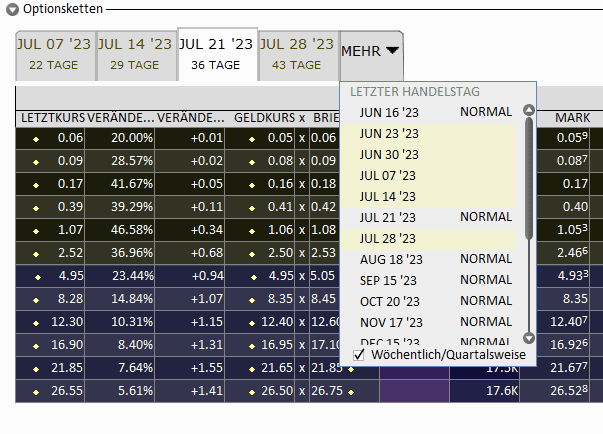
You can select a specific expiry date by clicking on the tab of the expiry date you wish to view. If you do not see this tab, click on the drop-down menu > More. Weekly options are marked with a yellow background, while monthly options have a light gray background. Note the checkbox that allows you to include or exclude weekly options.
Once you have selected the expiry date, you can specify which strike prices are to be displayed. To do this, click on the "Strike prices" drop-down menu. You can either select a specific number of strike prices by clicking on the options button or a specific number of strike prices determined by the standard deviation from the price of the underlying. You can also simply select step by step on the right hand side, deselect or check the "All" box. Once you have made your selection, click on the "Close" button to refresh the page.
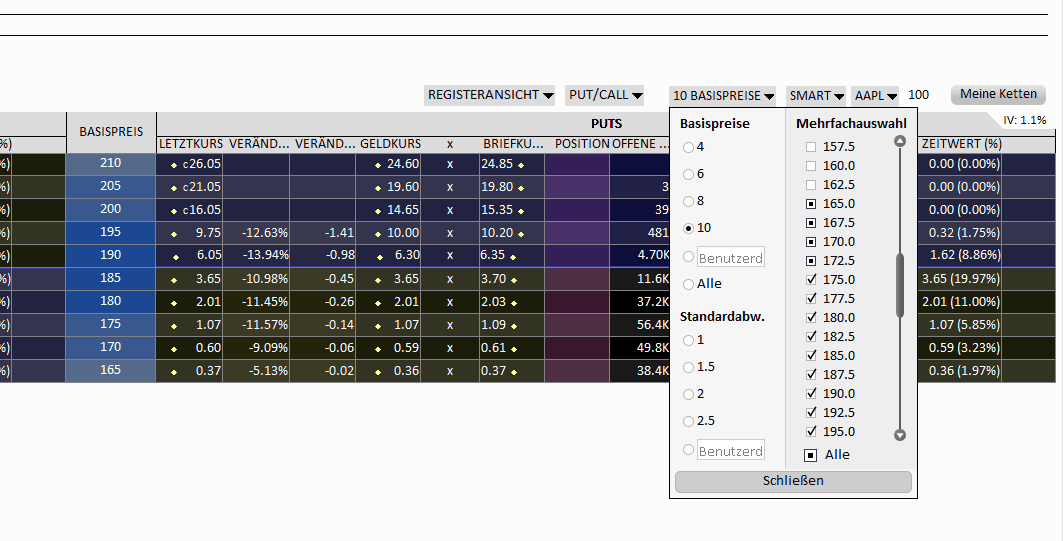
If you only Call options or only Put options you have the option of using the "Put/Call" drop-down menu to make your selection. This option is particularly useful if you want to add a large number of columns and display the data more clearly.
You have the option of customizing the columns of the option chain according to your needs. You can change the Greeks (Delta, Vega, Gamma, etc.), bid and ask prices for options, price sizes, volume, open interest and much more. To use the standard columns of the Option chain To change the value, right-click on a column header and select "Option chain settings". Here you can expand a group and select the desired value. Click "Add" to add it to the list of displayed columns and click "OK" at the bottom of the window. The added columns are now displayed in the option chain.
In addition, you can also specify to which Stock Exchange your order should be directed to. To do this, click on the drop-down menu to the right of the exercise prices. All available exchanges will be displayed here.
List view
In the list view, you have the option of displaying the expiry dates and exercise prices in the middle and also reducing them. In the reduced state, you can see the implied volatility for each expiry on the right-hand side. By clicking on the arrow you can view a specific expiry in isolation. You will find menus at the top that resemble the layout of the tabbed view.

Trading with a single option
To add the desired call or put option to the order entry panel, click on either the ask or bid value, depending on whether you want to buy or sell the option. This will automatically close the option chain and the selected option will replace the underlying symbol in the order entry panel. If you click on the bid price, the order entry area will be highlighted in red. If you click on the ask price, the background will turn blue. Update the order type, quantity and validity period as required and then submit your order.